mp3rgui: a desktop app for lossless MP3 and AAC volume
Updated · mp3rgain v3.16.2
mp3rgui is the graphical version of mp3rgain, for Windows, macOS, and Linux. Add files or folders, analyze, and apply: the volume of your MP3 and AAC/M4A files is evened out without re-encoding, and Undo puts it back. It is free and open source, and it follows the workflow of the classic MP3Gain window.
Download
| System | How to get it | Notes |
|---|---|---|
| Windows 10 and 11 | Download the installer, or winget install M-Igashi.mp3rgui | One installer for x64 and ARM64. Adds a Start Menu entry and an uninstaller; no administrator rights needed. winget installs a portable copy instead. |
| macOS 11 or later | brew install --cask M-Igashi/tap/mp3rgui, or the DMG on GitHub Releases | Universal app for Apple Silicon and Intel, signed with a Developer ID and notarized by Apple. |
| Debian 13+, Ubuntu 24.04+ | sudo apt install mp3rgui from the apt repository | amd64 and arm64. Needs GTK 3. |
| Arch Linux | yay -S mp3rgui | Built from source; the AUR package is maintained by this project. |
The Windows installer is not code-signed, so SmartScreen may show a warning the first time you run it. Checksums, build provenance, and what to do when a download is blocked are on the install guide.
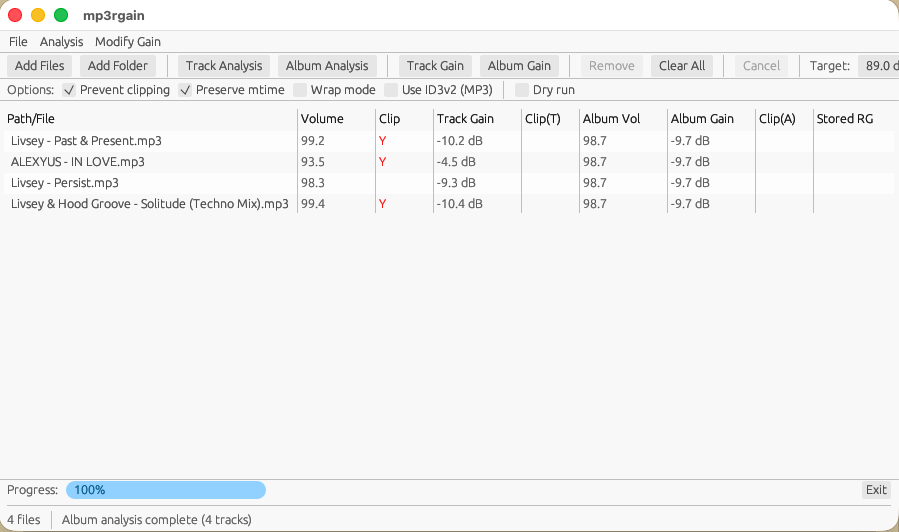
Normalize your files in four steps
- Add your music. Drag files or folders onto the window (subfolders are included), or use Add Files and Add Folder. MP3 and AAC files are picked up; everything else is ignored.
- Analyze. Click Track Analysis to measure every file on its own, or Album Analysis to measure albums as a whole. Nothing is changed yet: the table fills in with each file's volume and the gain it would get.
- Apply. Click Track Gain or Album Gain. mp3rgui rewrites the gain field in each file and writes ReplayGain and undo tags. The audio is not re-encoded.
- Change your mind? Modify Gain → Undo All (or Undo Selected) restores the original volume from the undo tag, today or a year from now.
To see what would happen without writing anything, tick Dry run first.
Track gain or album gain?
Track Gain brings every file to the same loudness, which suits playlists, shuffle, and a USB stick for the car. Album Gain applies one correction to a whole album, so quiet tracks stay quieter than loud ones, as the album was mastered. By default each folder counts as one album; the Album option switches to grouping by tags, or to treating everything in the list as a single album.
Options
| Option | What it does | CLI flag |
|---|---|---|
| Target | The loudness to aim for. The default is the ReplayGain reference, 89 dB. | -d |
| Analysis: RG 1.0, RG 2.0, R128 | How loudness is measured. RG 1.0 gives the same values as mp3gain; RG 2.0 (−18 LUFS) and R128 (−23 LUFS) use ITU-R BS.1770. | --rg2, --r128 |
| Prevent clipping | Limits the gain where a full correction would clip. On by default. | -k |
| Preserve mtime | Keeps each file's modification time, so sync and backup tools do not see every file as new. On by default. | -p |
| Album: Per folder, By tags, Single album | What counts as one album for Album Analysis and Album Gain. | --album-by |
| MP3 tags | Where tags go on MP3: ReplayGain in ID3v2 (default), all in APEv2 (mp3gain's layout), or all in ID3v2. | -s a, -s i |
| Use stored tags | Applies gain from ReplayGain tags already in the file and analyzes only files without them. RG 1.0 only. | -s R |
| Dry run | Shows what would change and writes nothing. | -n |
| Wrap mode | Wraps gain values instead of clamping them. Rarely needed. | -w |
The menus add manual gain in 1.5 dB steps, per-channel gain for MP3, Find Max Amplitude, Check Stored Tags, and Delete Stored Tags. A Stored RG column shows the ReplayGain and undo tags a file already carries.
Coming from MP3Gain
If you used the MP3Gain program on Windows, the buttons will be familiar: a file list, Track Analysis and Album Analysis, Track Gain and Album Gain, and a target volume. What is different:
- AAC and M4A files work too, with the same lossless method and undo, which used to need the separate aacgain.
- It is maintained, and built for current systems: Windows on ARM, Apple Silicon, and Linux, in addition to x64. Why that matters for safety.
- Files that MP3Gain already adjusted can be undone here. mp3rgui reads and writes the same undo tag.
- Clipping prevention is on by default. A file is never pushed past full scale unless you turn the option off.
Languages
mp3rgui follows the system language and has a Language menu. It ships in
English, Brazilian Portuguese, German, Indonesian, Italian, Japanese, and Turkish. A new
language is one gettext .po file and needs no programming:
issue #440 explains how to add yours.
Differences from the command line
- Album gain groups files per folder by default; CLI
-atreats every file given as one album, as mp3gain does. - Prevent clipping and Preserve mtime are on by default;
-kand-pare off in the CLI. - There is no tags-only mode and no true-peak option. Use the command line for those.
Both programs run the same processing code, so a file adjusted in one can be inspected or undone in the other.
System notes
- Graphics. macOS and Linux draw with OpenGL 2.0 or newer. Windows uses
Direct3D 12 or Vulkan with a software fallback, so it usually starts in virtual machines and
remote desktop sessions; set
MP3RGUI_RENDERER=glowto use OpenGL instead. If no renderer works, mp3rgui shows a dialog that says why. - File names in Japanese, Chinese, or Korean are drawn with a CJK font
already installed on your system. Set
MP3RGUI_FONTto a font file to pick another. - Formats. MP3 and AAC-LC (M4A, MP4, raw
.aac). HE-AAC, ALAC, and DRM-protected files are skipped; FLAC, Ogg, Opus, and WAV are not supported.
Prepping tracks for rekordbox and CDJs? Bake'n Deck, by the same author, has mp3rgain built in and brings every track to one true peak ceiling (gain only, no limiter), with rekordbox cues and beatgrids kept linked.